Creating Droplets
 To create a new droplet, double click on the DropDat master application.
You will then be presented with a blank configuration screen like the one below.
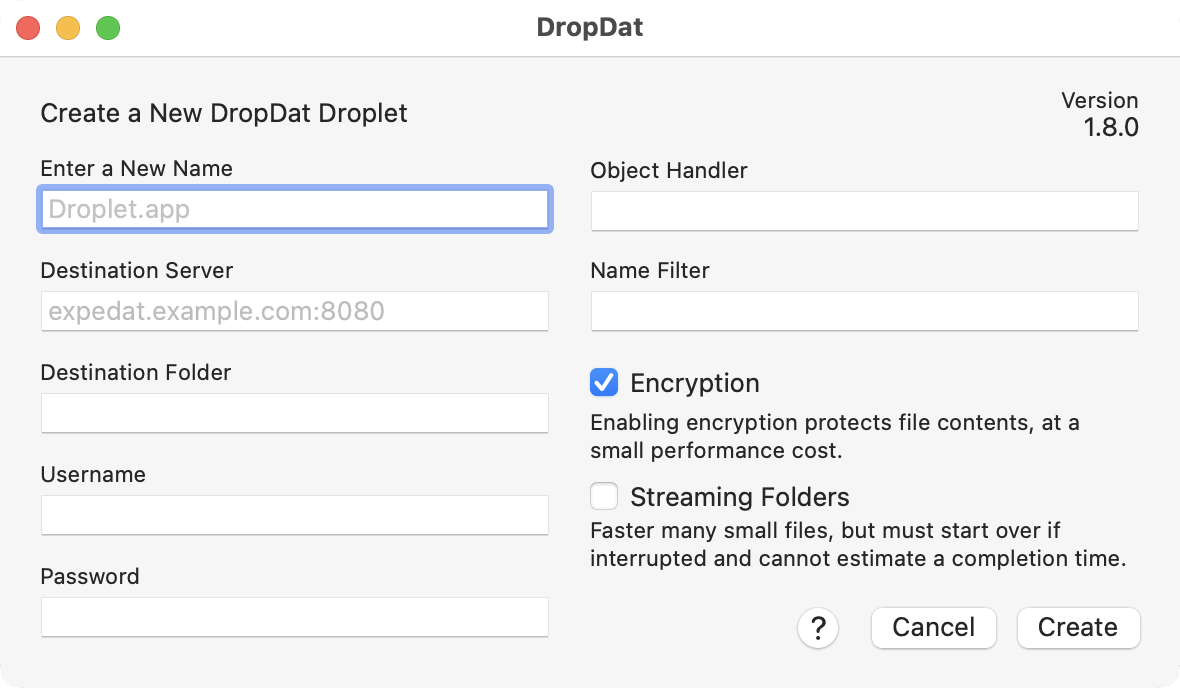
Fill in the details about the droplet you wish to create. The window can be widened if you need more room.
| Name | This will be the name of the droplet executable. It must be different than DropDat's name. For example, "To Home Office". The new droplet will be created in the same folder as DropDat. You must have write permission for that folder to create a droplet. |
| Destination Server | The DNS name or IP address of the host or the host group to which files will be sent. The port number of the server can also be specified using a colon. For example: server.example.com:8080. The server name or address will be evaluated on the system running the droplet at the time of each file transfer. If you use an internal name or private address, the droplet will not work on systems outside your network. |
| Destination Folder | The path to the folder on the server where files will be uploaded. Remember that ExpeDat servers always use forward slashes ('/') to delimit path names. Leave this blank to deliver files to the home directory. See the Home Directories section of the server documentation for details. |
| Username | If the server requires authentication, enter the username here. Usernames must be less than 64 bytes when UTF-8 encoded and should consist of only ASCII letters, numbers, and symbols. When targeting a Windows server, you may specify an Active Directory name as "username@ad_domain". Leave this field blank to prompt the user for credentails at run-time. Set this field to "ANONYMOUS" and leave the password blank for servers that do not require authentication. |
| Password | When authenticating with a username, you may enter the matching password here. The password will be AES encrypted prior to storage in the droplet. Passwords must be less than 96 bytes when UTF-8 encoded and should consist of only ASCII letters, numbers, and symbols. Leave this field blank to prompt the user for credentials at run-time. |
| Object Handler | Leave this blank for regular file uploads. If the server has been configured to accept data for an Object Handler, enter the Object Handler's action code here. For example, if you are uploading to the CloudDat gateway for Amazon S3, enter "S3" here. An Object Handler cannot be used with Streaming Folders. |
| Name Filter | Glob-like patterns applied to the names of dropped items and the contents of non-streaming folder transfers. See Filters for syntax. |
| Encryption | Checking this box enables AES encryption of the file content while it is in transit. Request information, including usernames, passwords, file paths, and meta data, are always encrypted. Encryption increases the CPU load of both the server and the client computers which may limit performance at high speeds on CPU bound systems. One or two available CPU cores are needed to support each gigabit per second of encrypted throughput. |
| Streaming Folders | When enabled, folders and their contents will be sent as a real-time data stream, instead of one file at a time. This may be faster for large numbers of small files, but if the transfer is interrupted it will have to start over from the beginning. See the ExpeDat Desktop Copying Folders section for more details. Name Filters are not applied to the contents of Streaming Folders. Streaming Folders cannot be used with an Object Handler. |
| Help | Click the "Help" button view instructions as well as program license and version details. This information may be required if you are seeking technical support. |
| Version | The version of DropDat you are using. Click the "Help" button for complete version, package, and license information. |
Enter the droplet configuration as described above. When you click create, DropDat will create a droplet file with the given name and configuration details.
If a file with the same name already exists in the directory containing DropDat, that file will be replaced with the new droplet. If a droplet with the same name is already running, you may need to quit that droplet before it can be replaced.
macOS: If DropDat is located in your Applications folder, droplets will be created there too. Moving a droplet (or any application) out of Applications requires that you hold down the command-key while dragging it to the new location. This tells the Finder to actually move the droplet instead of just creating an alias.
Droplets are self-contained applications. You can copy, move, and rename them just like any other application. You can also customize the icon using the operating system or third-party icon tools.
Modifying the icon of a Windows application will break its Authenticode signature. Follow these steps to create droplets with custom icons:
1. Apply a new icon to the DropDat.exe master.
2. Apply your own code signature to the DropDat.exe master.
3. Create droplets using this customized DropDat.exe master.
Changing a macOS application's icon does not break its signature and may be done by performing "Get Info" in the Finder, clicking the application icon, and pasting an image.
Droplets can be copied, downloaded, or emailed, subject to any restrictions normally placed on an executable. Droplets do not require any installation other than copying them onto a compatible system. See the Distribution section for details.
Droplets can be changed. Drag a droplet onto a DropDat master to change its configuration. An alternative to creating them from scratch is to duplicate an existing droplet, then drag the copy onto DropDat to change its configuration.
Operating Systems
Because droplets are executable applications, you must use a Windows system to create Windows droplets and you must use a macOS system to create macOS droplets.
Anti-Virus Software
Some anti-virus software may prevent DropDat from creating or modifying droplets. If you receive an error that DropDat is unable to create a droplet or unable to modify its resources, you may need to create an exception for DropDat in the anti-virus software.